Enrolling in Entra Multi-Factor Authentication
Multi-factor Authentication (MFA) protects you against lost or stolen passwords by adding a verification step to your Oxy login with the Microsoft Authentication App. To utilize Microsoft Entra MFA, you must first enroll. It takes five minutes to sign up, and you'll need both a computer and a mobile device.
While the most convenient MFA options use smart phones, if you would prefer to use a hardware security key instead, you can request one from ITS.
Start on your computer
1. Visit https://aka.ms/MFASetup to enroll in Entra MFA.
2. The following prompt will appear on your screen:
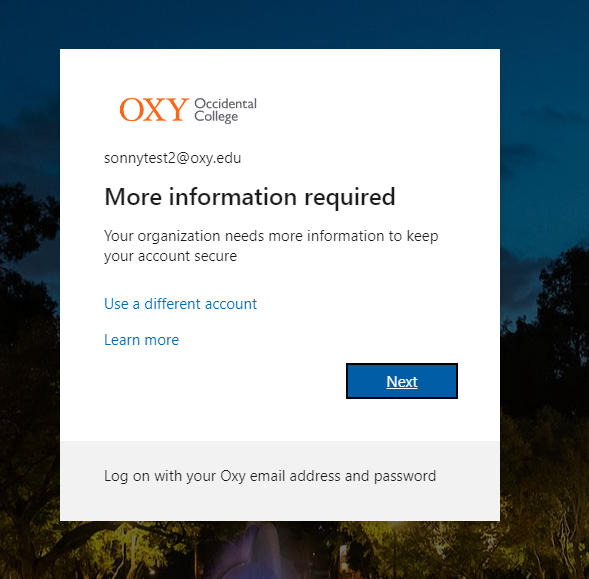
3. Select Next, and you will be redirected to the Microsoft Entra MFA enrollment page.
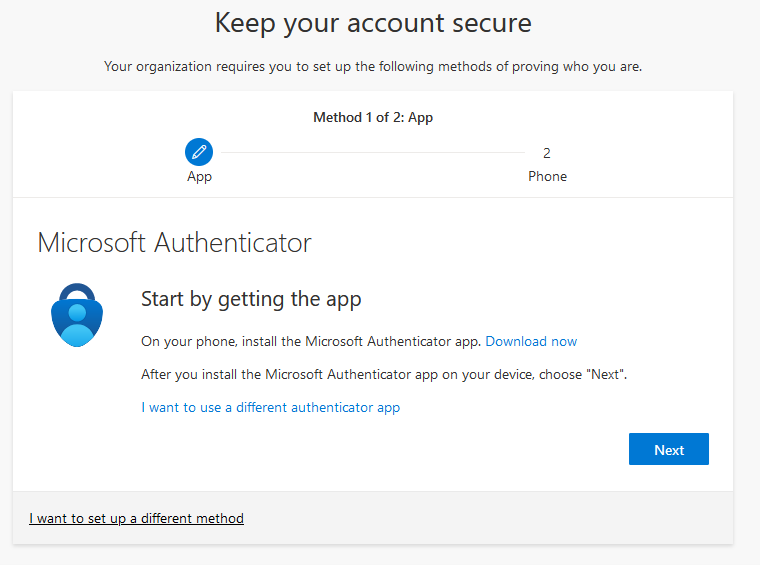
4. You can now choose your preferred method for multi-factor authentication, so please click the link to jump to the instructions for your preferred method.
Option 1: The Microsoft Authenticator App is my preferred method
Using Your Phone
- Download the Microsoft Authenticator Mobile App on your mobile device. Keep this window open.
- Open the app store on your device (Apple or Android).
- Search for the “Microsoft Authenticator" app. Published by Microsoft Corporation
- Download and open the authenticator app.

Back On Your Computer
- Select Next to continue setting up the app.
From your phone
- Open the Microsoft Authenticator app, and if prompted, allow notifications.
- You will now add an account. Make sure to select Work or School account.
- Now select Scan a QR code.
From your computer
- Select Next again, and now you should be presented with a QR code.
From your phone
- Scan the QR code using your phone, and your Oxy account has added the app.
From your computer
- Select Next, and a test notification will be sent to your phone.
From your phone
- Approve the notification on your phone.
From your computer and using your phone to answer the prompt
- Select Next on the computer screen, and you will now be prompted to add a phone number and how you would like to verify.
A. Text me a code: you will receive a 6-digit code in a text message that you will enter on your computer
B. Call me: you will receive a phone call in which you will answer and then press the pound # key.
From your computer
- You have officially completed enrollment; select Done on your computer screen. Microsoft lets you add multiple methods for MFA, so if you want additional methods, please see Additional Information to set up additional methods.
- You can limit verification requests by selecting “Don’t ask again for 7 days” during your next MFA prompt.
Option 2: Authenticator based passkey is my preferred method
Using Your Phone
- Download the Microsoft Authenticator Mobile App on your mobile device. Keep this window open.
- Open the app store on your device (Apple or Android).
- Search for the “Microsoft Authenticator" app. Published by Microsoft Corporation
- Download and open the authenticator app.
- Then follow these instructions for Apple or Android devices
Additional Information
You will be required to verify your login using the Authenticator app or your passkey
-
SMS/Voice based authentication will retire on February 1st, 2027, please use the Authenticator app or a passkey
-
You can limit verification requests by selecting “Don’t ask again for 7 days” on any Oxy Sign-In page.
-
We recommend adding an additional authentication method in case you cannot authenticate using your preferred method:
-
Log into myaccount.microsoft.com with your full @oxy.edu email address and Oxy password.
-
Under Security info, select Update Info >.
-
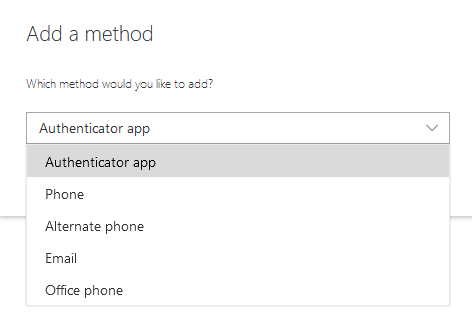
Select Add method.
-
Select the authentication method you wish to add. The Authenticator app is the preferred method. The app will send push notifications to your mobile device, which is the fastest and most secure form of authentication.