Windows:
About:
Connect your Windows PC to the Occidental College network from anywhere in the world (or across town) via the Oxy VPN (Virtual Private Network). This article walks you through the installation of the FortiClient, the VPN client for use at Oxy. Note: If at all possible, set up FortiClient prior to a large trip where you will absolutely need to connect to the Oxy network, so you can test it from home.
Steps:
Permission to use VPN:
- Oxy employees and students may have VPN access available upon request by emailing the helpdesk@oxy.edu.
Installation:
- Download the FortiClient software onto the device(s) that you will need access:
- For Windows devices: https://links.fortinet.com/forticlient/win/vpnagent
- If the Wizard does not run automatically, locate and run the FortiClient Setup Wizard which you downloaded.
- Please determine whether you want VPN only or VPN and Antivirus to be installed:
- If you are installing this on an Oxy machine or if you already have an antivirus that you are happy with, select “VPN Only”.
- If you are installing on a personal (non-Oxy) machine, and you want to use Fortinet’s antivirus product, install “Complete”.
- Follow the installation instructions. It may require you to restart your system before finishing the installation.
- Wait for the installation to complete. When it is finished, it will open the FortiClient.
Setup and Connection:
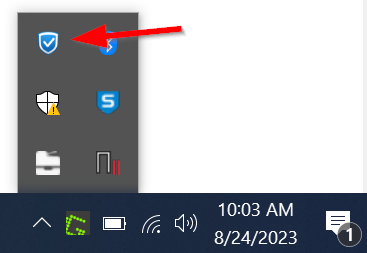
- Open FortiClient by double-clicking on the FortiClient shield icon in the right side of the system tray, if it’s not already open
- Select the “Remote Access” sidebar menu item, if it is not already selected
- Click on “Configure VPN”
- Make sure “SSL VPN” tab is selected at the top (it should be the default)
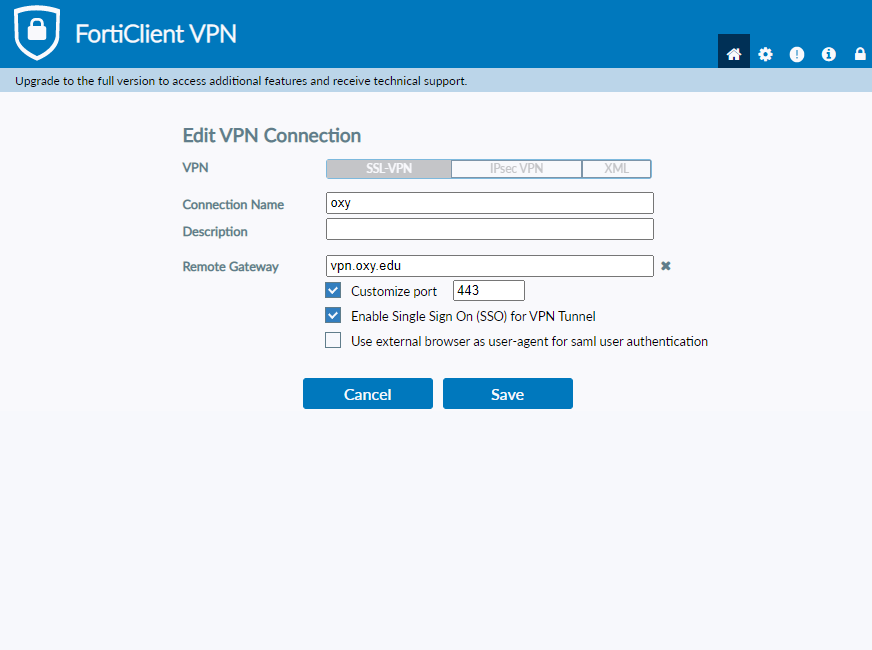
- Enter these values in the New VPN Connection form
- Connection Name: Oxy VPN
- Description: may be left blank
- Remote Gateway: vpn.oxy.edu
- Authentication: Click customize port and enter "443"
- Authentication: Click "Enable Single Sign On (SSO) for VPN Tunnel"
- Click Save, then click Close.
- Click "SAML Login" then enter, you will be asked to enter your full oxy email address.
- To disconnect, right click on the Fortinet icon in the system tray at bottom right of your screen, and select “Disconnect”.
- To make subsequent connections:
- Right click the FortiClient icon
- Select Connect to “Oxy VPN“
- Enter your \\oxynet.oxy.edu username and Password and press connect
Mac:
About:
Connect your macOS computer to the Occidental College VPN (Virtual Private Network) in order to connect to the Oxy network from anywhere in the world (or across town). Note: If at all possible, Set up the Fortinet VPN prior to a large trip where you will absolutely need to connect to the Oxy network, so you can test it from home. There are separate instructions for Windows, Linux, and iOS
Note: Fortinet does not support very old macOS systems. As of September 2022, the FortiClient supports these versions of macOS:
- macOS Ventura (version 13)
- macOS Sonoma (version 14)
- macOS Sequoia (version 15)
Steps:
Permission to use VPN:
- By default, Oxy employee accounts have VPN access and students can access it by request by contacting helpdesk@oxy.edu.
Installation:
- Download the FortiClient software:
- Locate and open the installer that you just downloaded (usually in your Downloads folder)
- Accept the license agreement and continue
- Complete the installation by pressing Install and then press Close
Setup and Connection:
- Open FortiClient by clicking on the FortiClient application in your Applications folder
- Click the “Configure VPN” link
- In the New VPN Connection window, select/enter the following:
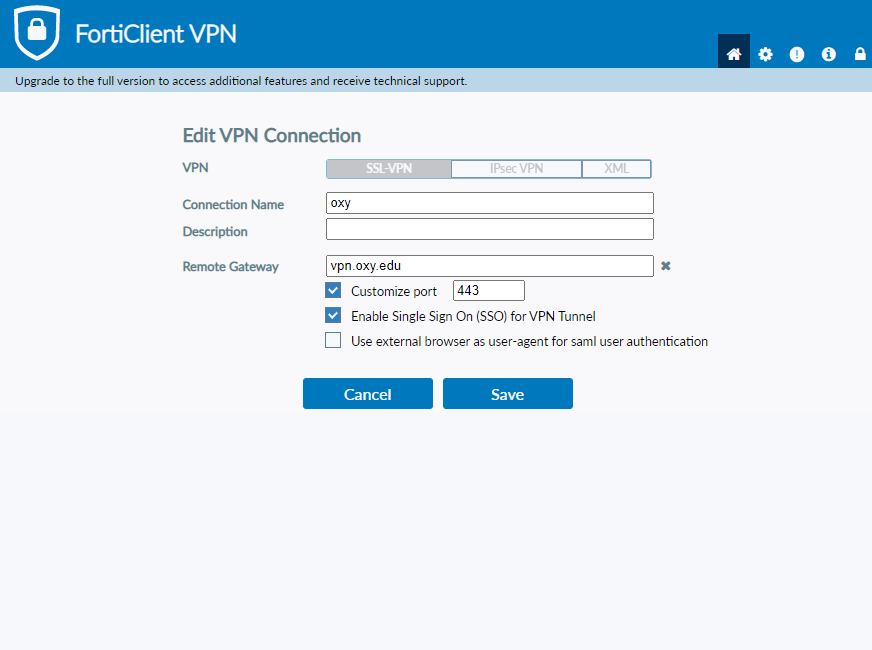
- Select the tab: SSL-VPN (it was probably already selected)
- Enter connection name: Oxy VPN
- Description: You may leave this blank
- Enter the Remote Gateway: vpn.oxy.edu
- Customize Port: Click the check box and enter 443
- Authentication: Click the check box for "Enable Single Sign On (SSO) for VPN Tunnel"
- Save by pressing "Save"
- To initiate the login process, click on the SAML Login button
- Close the FortiClient VPN window
- After installation and setup, a FortiClient icon will be added to your menubar. When you are disconnected from the VPN, the menubar icon will be a small shield with a grid of white squares.
- To connect, click on the FortiClient icon in the menubar, and select “Connect to Oxy VPN”. The menubar icon will change to a lock.

- Note, the first time you login, you will be asked for your Oxy username and password
- To disconnect, click on the FortiClient icon in the menubar, and select “Disconnect Oxy VPN”
Removing FortiClient
Whether you are through with the need to have VPN, or if you want to remove the FortiClient as part of a re-installation of FortiClient, please follow these steps.
Note: Fortinet only provides the latest version of FortiClient, and even if you keep old installers, they don’t have the software inside of them – the installers download a new copy of FortiClient each time. This is important if you are removing FortiClient and installing again, but your system is too old to run the latest version of FortiClient.
- Open your Applications folder on you macOS system.
- Double click on FortiClientUninstaller
- Follow the instructions to uninstall FortiClient